Exploring the User Interface
Sources
Overview
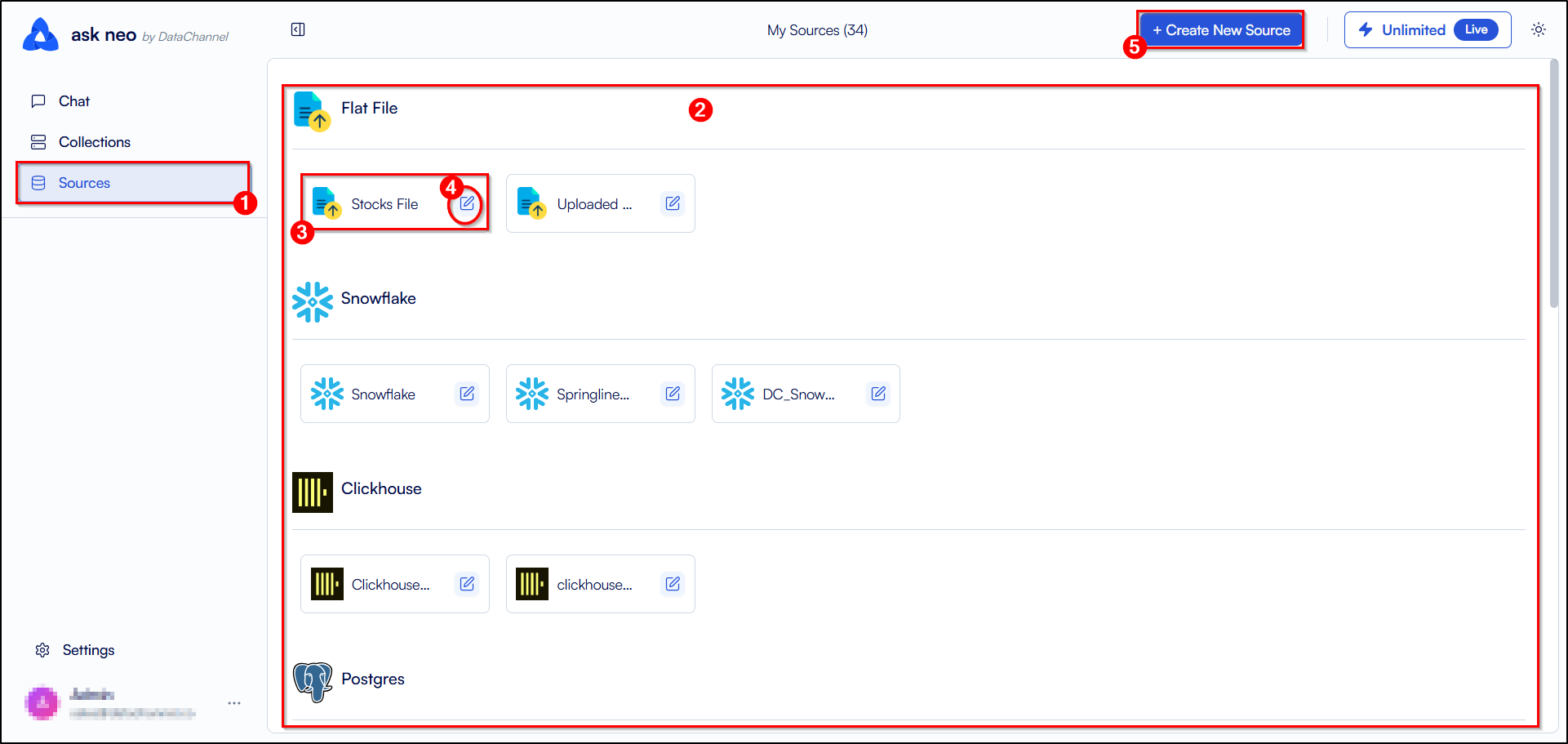
This section will help you to get familiar with the layout on the Sources tab of the Neo platform. You can access the Sources by clicking on the Sources menu which is the third tab on the sidebar, right below the Collections tab.
-
Access the Sources tab by clicking on the Sources tab in the sidebar.
-
Once there, you’ll notice that the Main UI screen on the Sources tab displays the list of all the sources available to you along with an option to create a new source.
-
Each source card displays the name of the data platform and list of all the sources available on that platform.
-
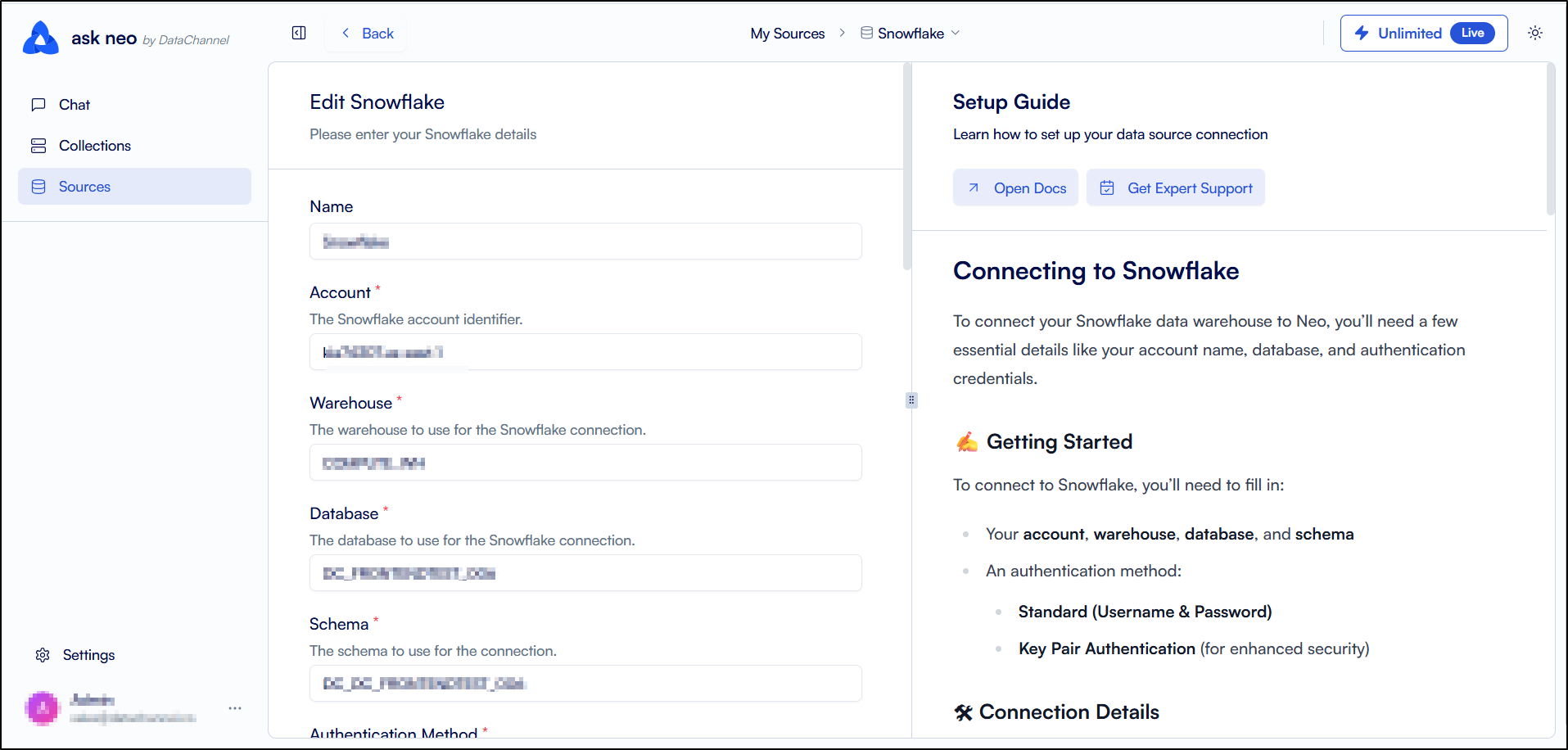
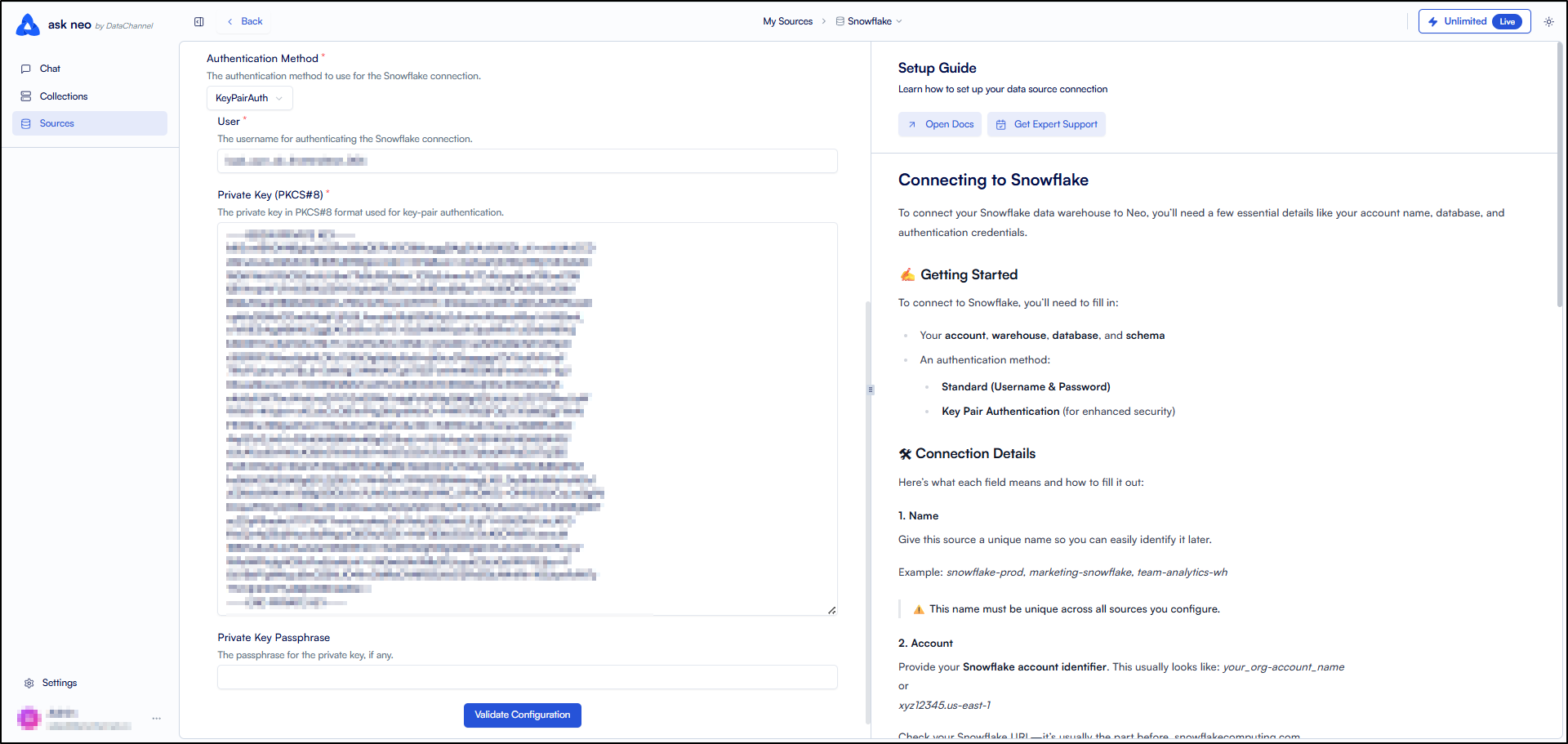
Edit your source by clicking on the edit icon. To learn more about editing a data source connection, click here.
-
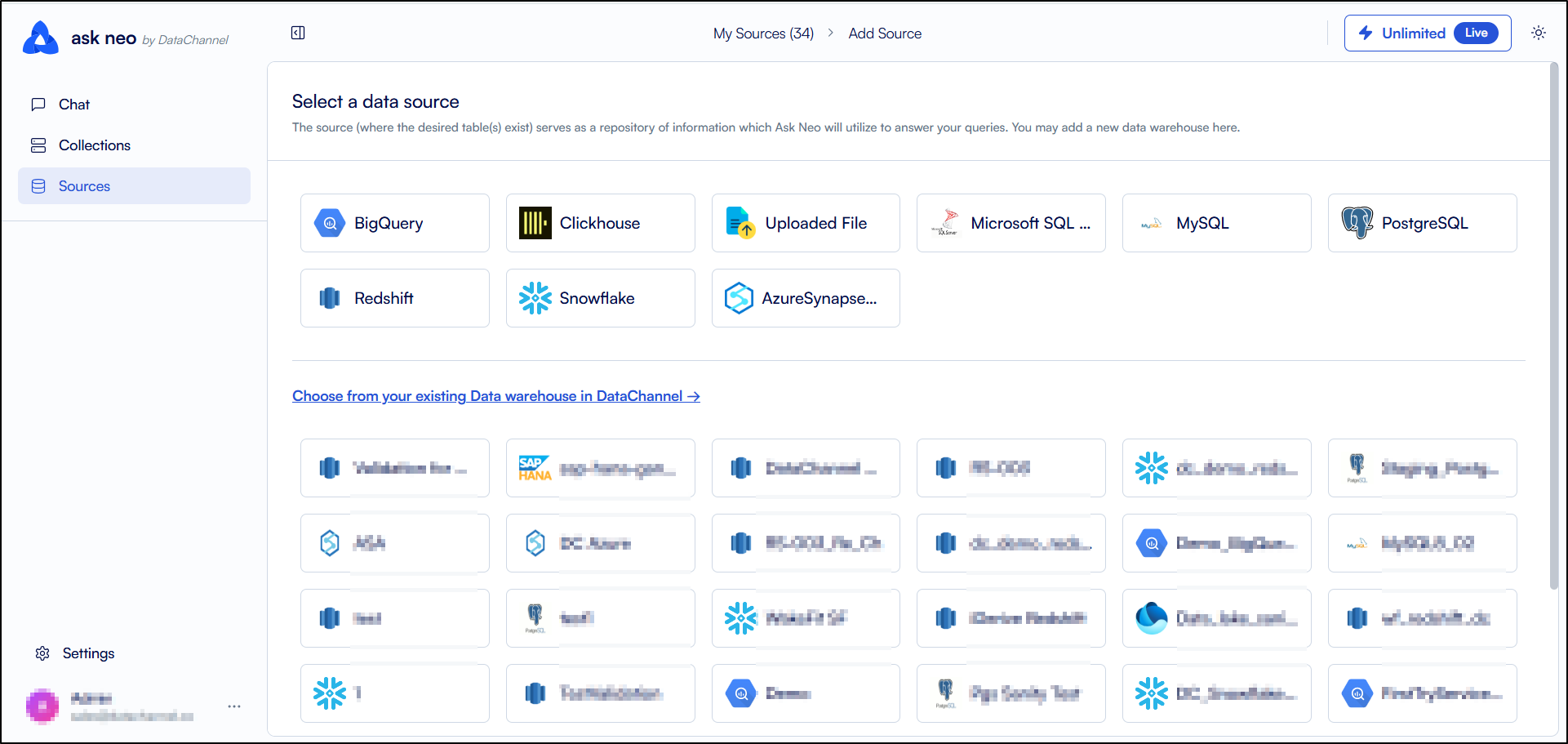
You can also create a new source by clicking on the Create New Source button on the top of the UI screen. This will open up a list of all the data platforms available in DataChannel. You can choose a data platform and add a new source by providing the required credentials for that data platform. To learn more about creating a new data source connection, click here.
Still have Questions?
We’ll be happy to help you with any questions you might have! Send us an email at info@datachannel.co.
Subscribe to our Newsletter for latest updates at DataChannel.