Exploring the User Interface
Top Banner
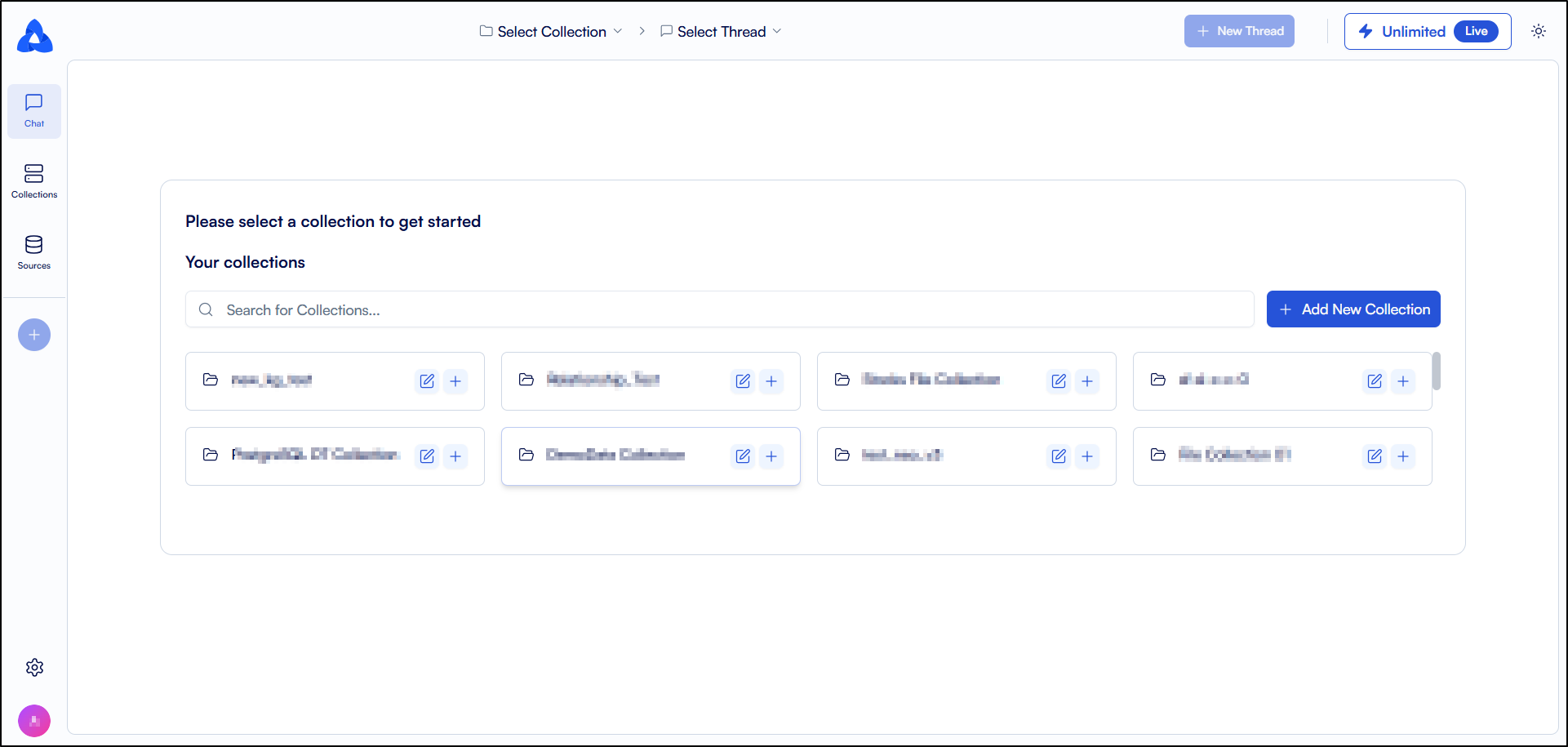
This section will help you to get familiar with the Top Banner of the Neo platform. On the uppermost part of the screen, you will be able to view the Top Banner.

-
On the left side of the Top Banner, the logo of the neo is displayed.
-
A Collapse sidebar icon is in the right of the logo. Clicking on this icon will collapse the sidebar and give you more space to view the main content of the page.
-
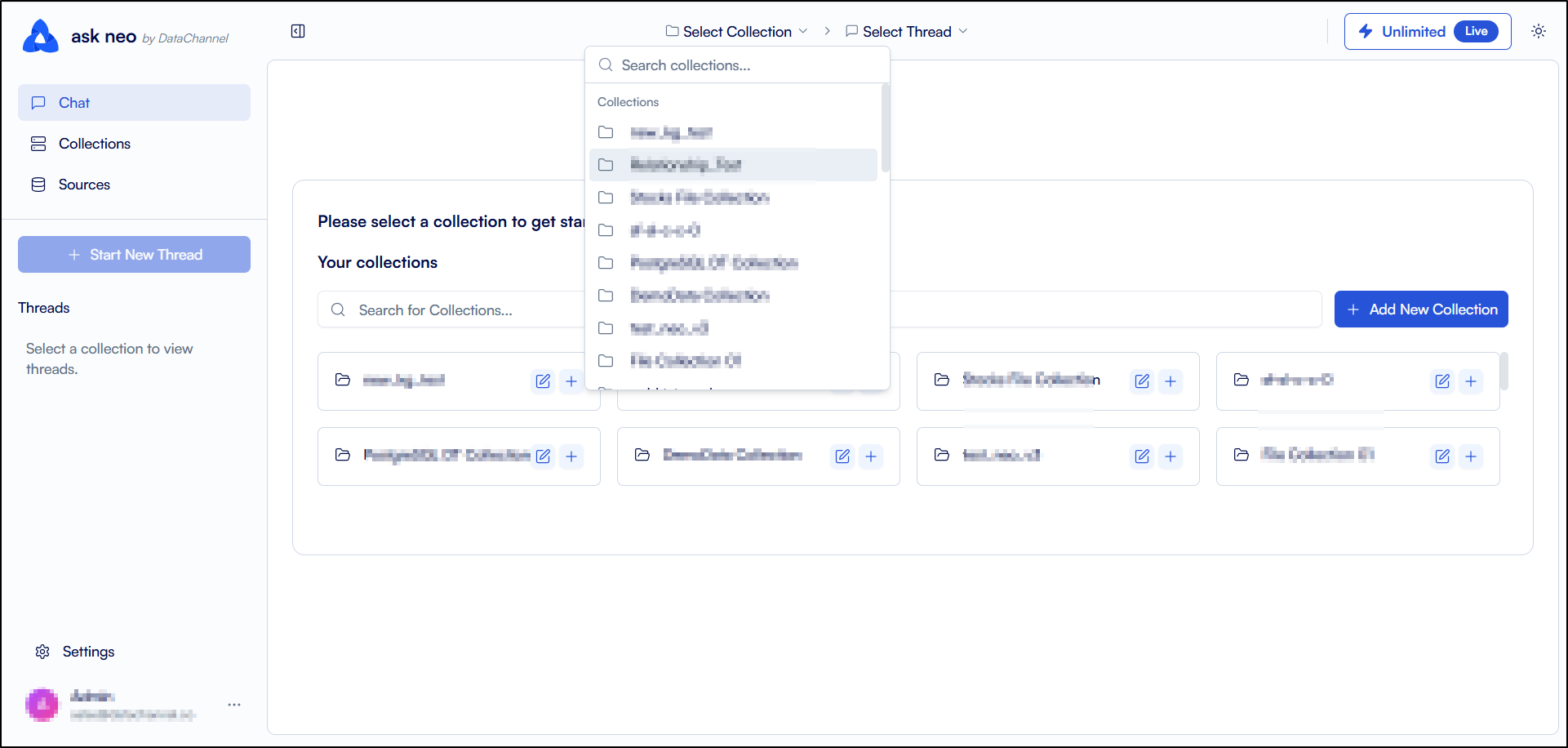
A Select Collection dropdown is located next to the Collapse sidebar icon. This dropdown allows you to select a collection from the list of collections added by you. You can also use the search bar to locate a specific collection.
-
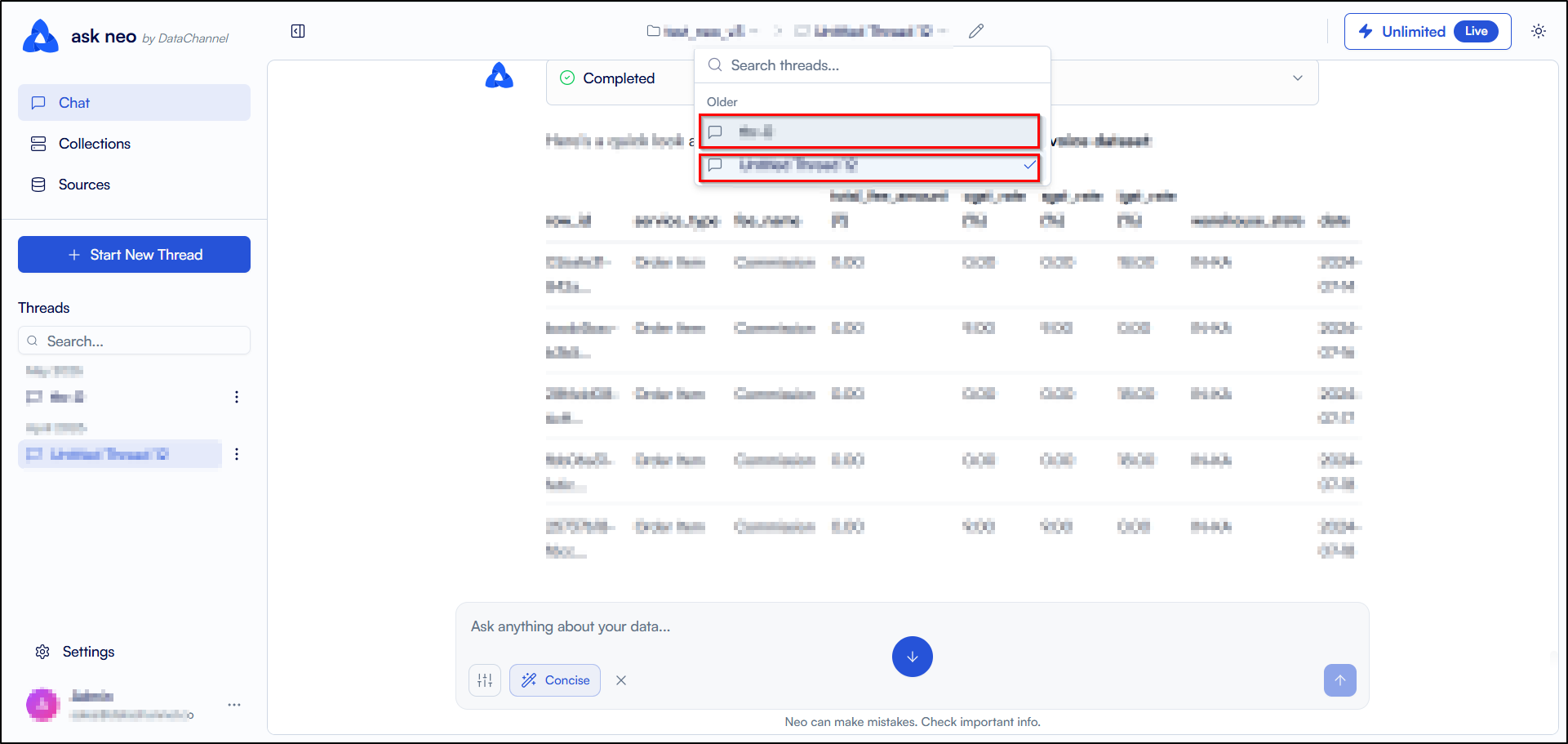
A Select Thread dropdown is located next to the Select Collection dropdown. This allows you to select a thread from the list of threads within the selected collection. Selecting a thread will display the questions and answers within that thread. You can also use the search bar to locate a specific thread.
-
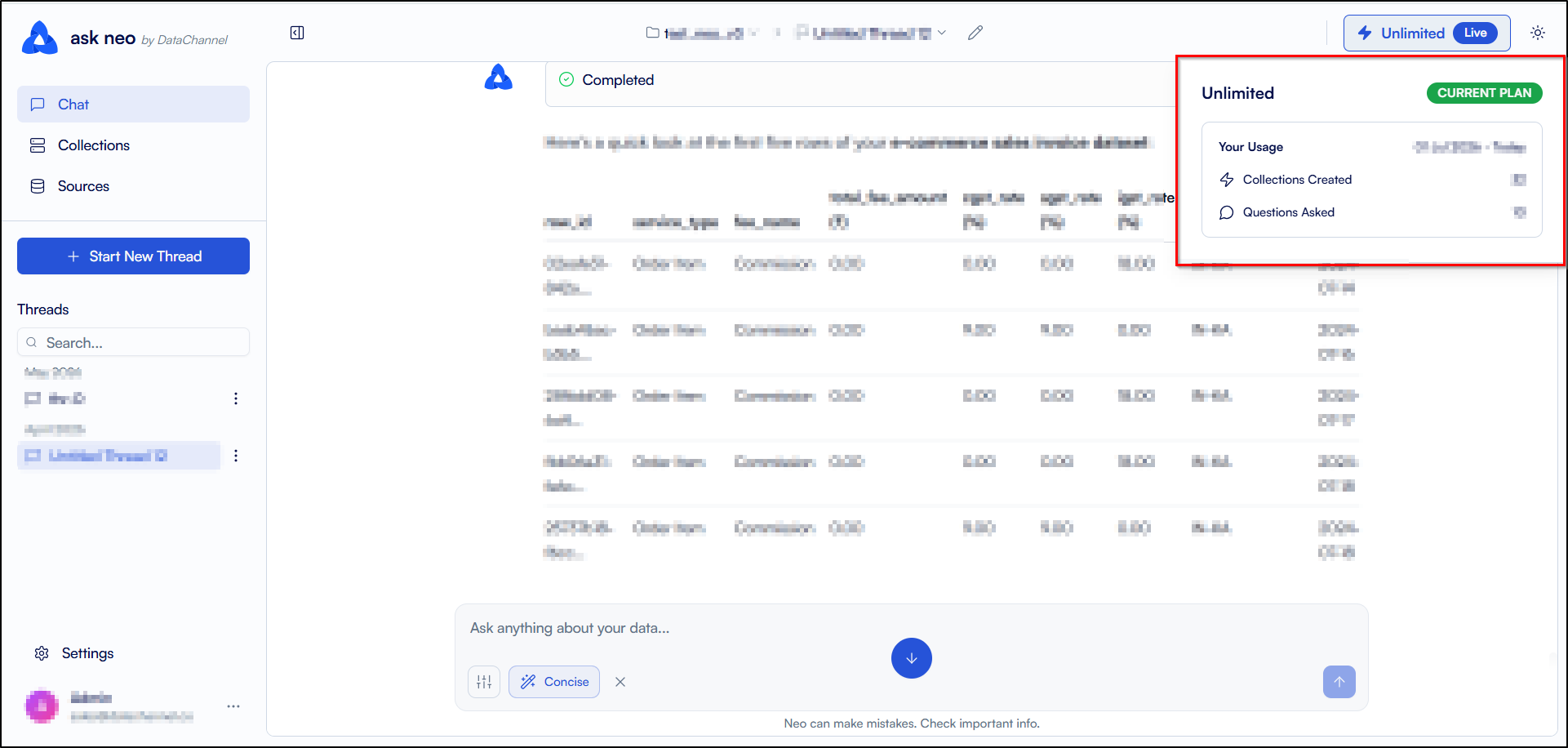
The second last icon on the right side of the Top banner shows you your current subscription plan type. Hovering over this icon will display the details and usage of your subscription plan.
-
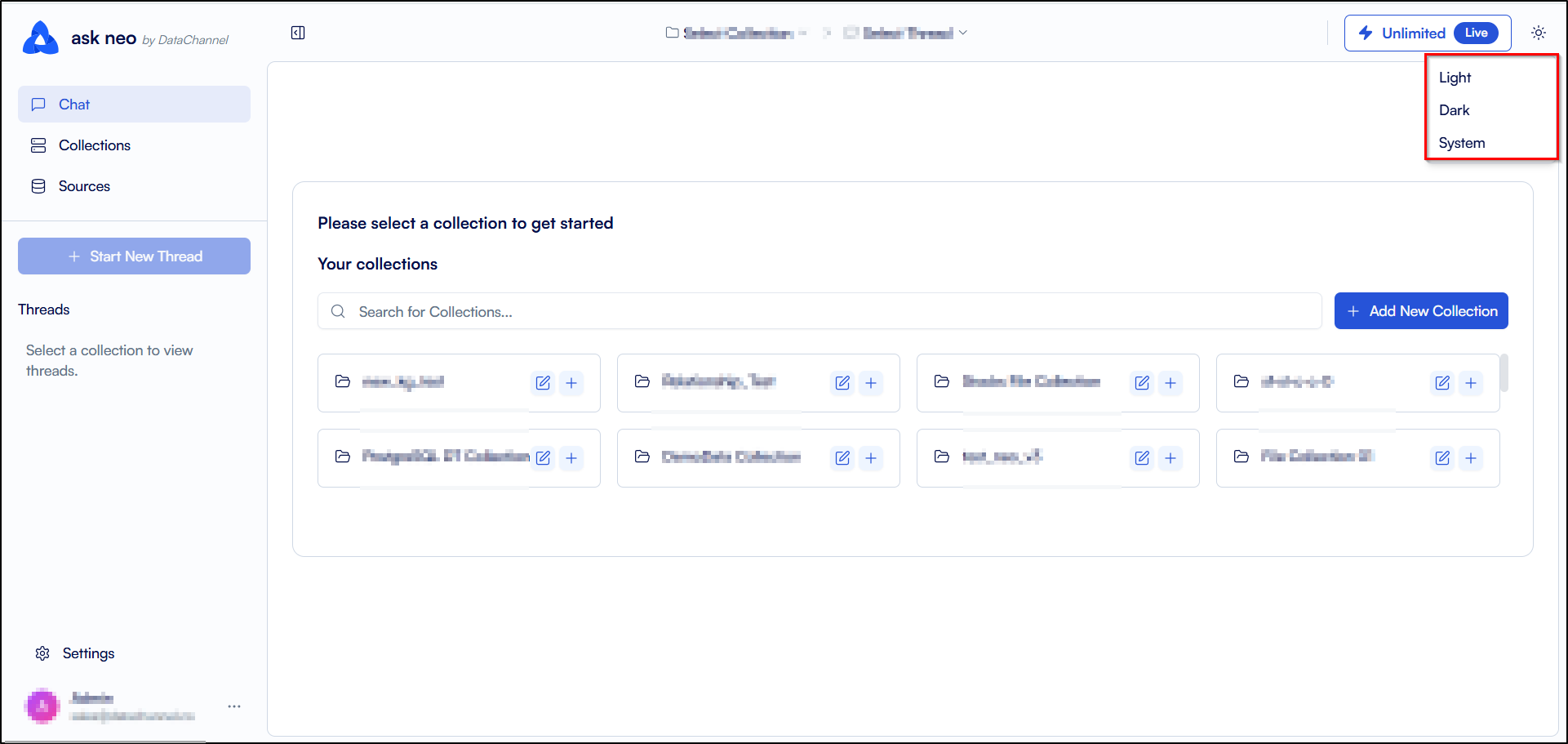
The display mode icon on the right side of the Top banner allows you to switch between light and dark modes. Clicking on this icon will change the theme of the UI from light to dark or system and vice versa.
Still have Questions?
We’ll be happy to help you with any questions you might have! Send us an email at info@datachannel.co.
Subscribe to our Newsletter for latest updates at DataChannel.