Export
This sync can be used to move User data from a data warehouse of your choice to Microsoft Sharepoint.
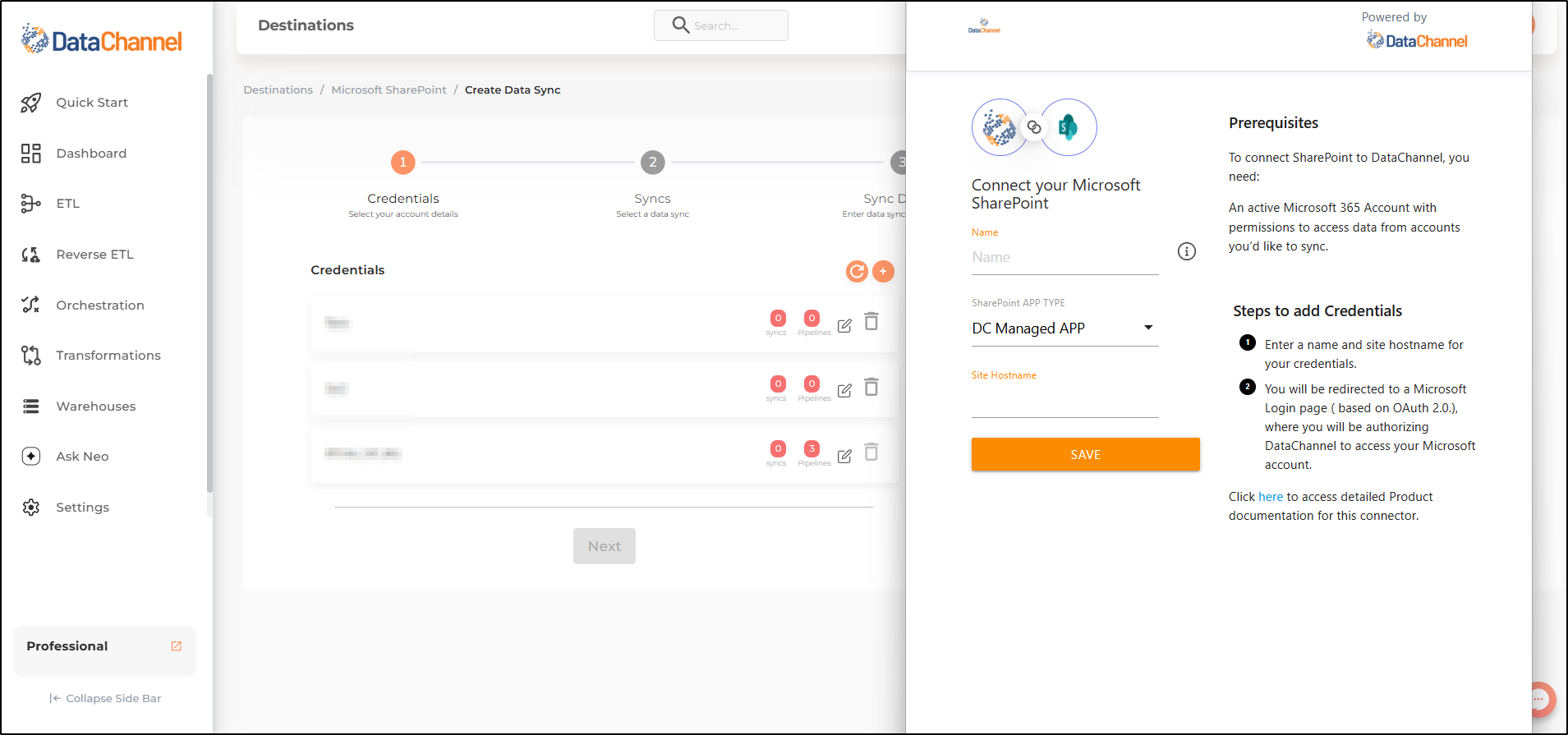
Configuring the Credentials
Select the account credentials which has access to relevant Microsoft 365 account from the given list & Click Next
Data Sync Details
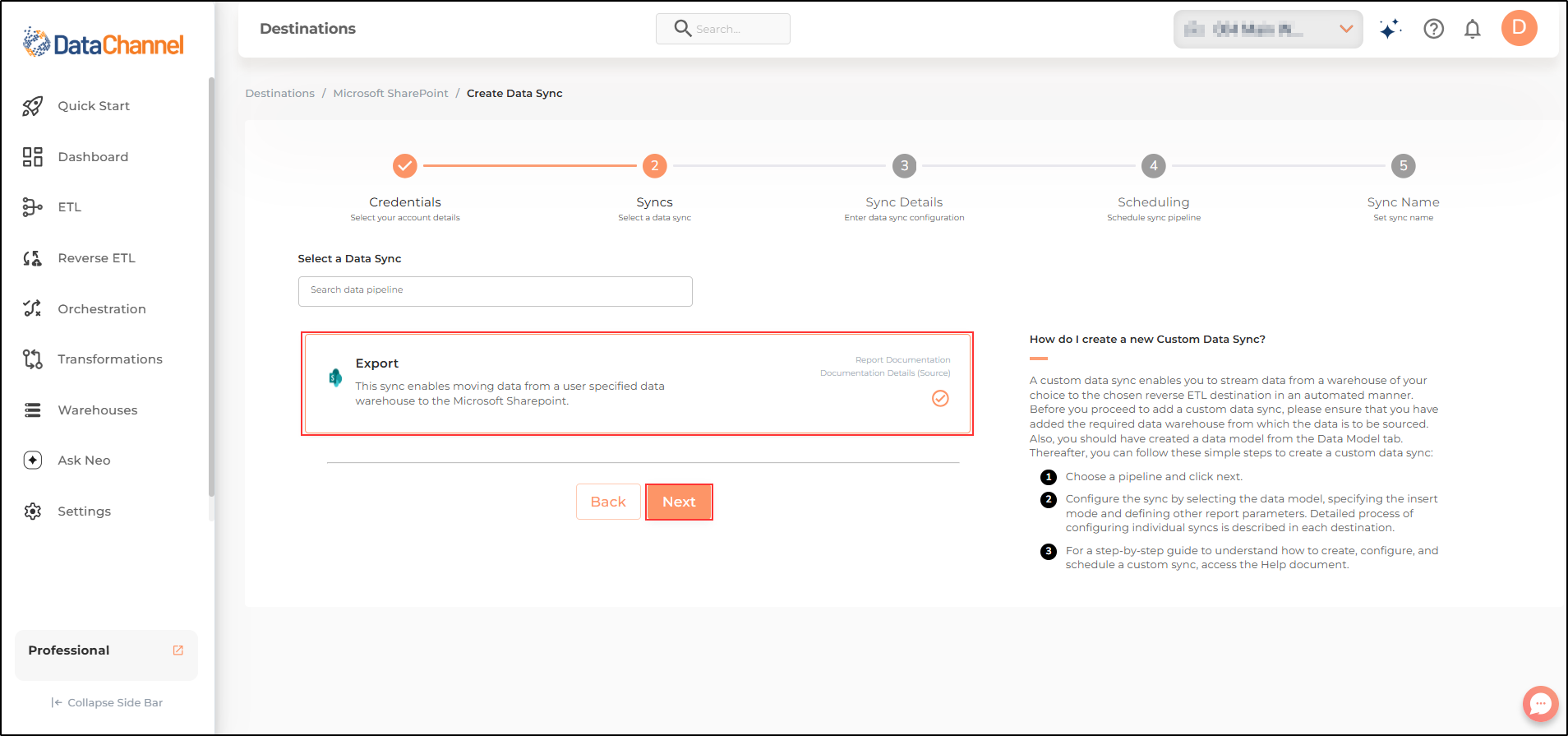
- Data Sync
-
Select Export & click Next
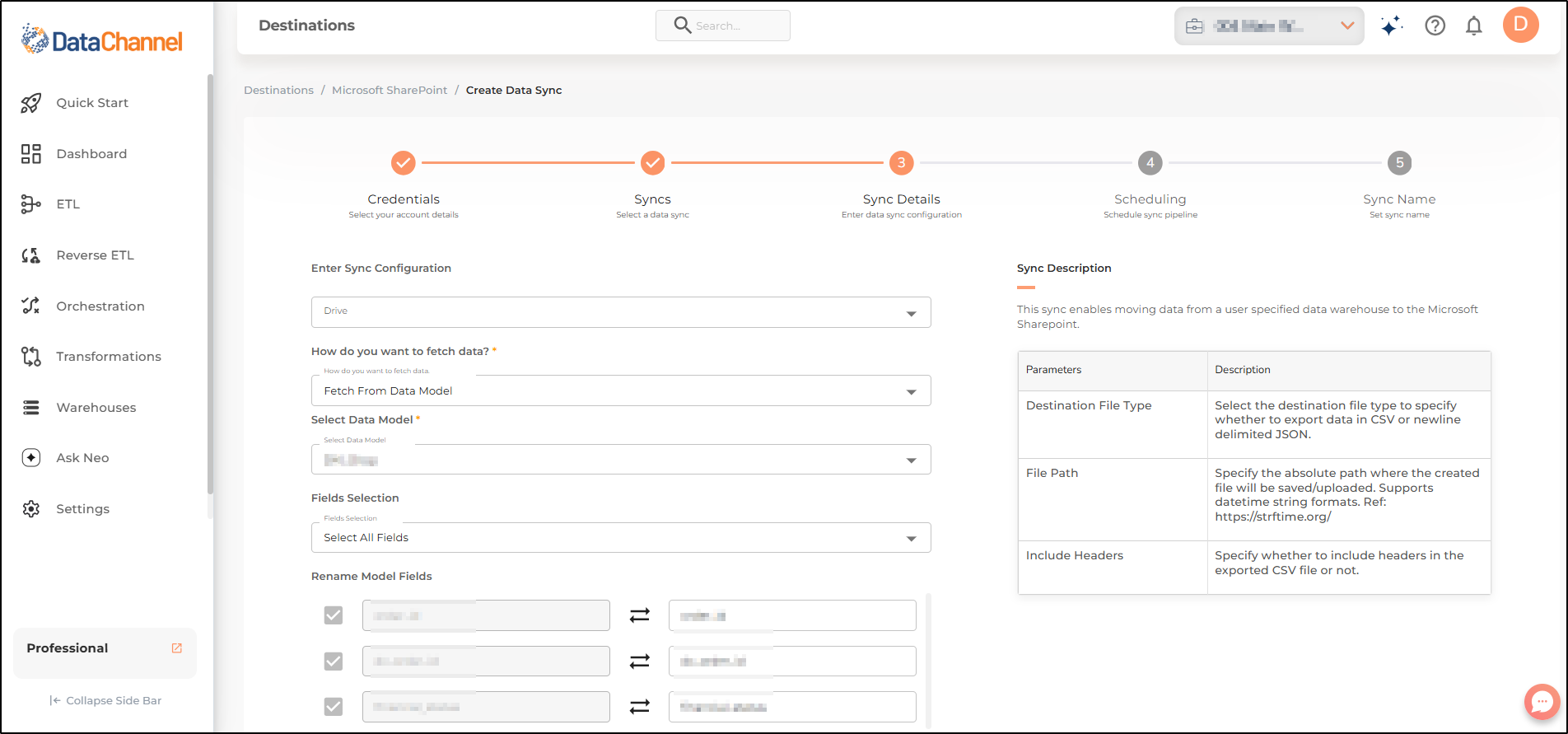
- How do you want to fetch data?
-
Select whether you want to fetch data from the Data Model or from Table/ View.
- Data Model
-
In case you want to fetch data using Data Model, select the data model that you would like to use for this sync. Checkout how to configure a model here.
- Data Warehouse
-
In case you want to fetch data using Table/ View, select the data warehouse that you would like to use for this sync.
- Table / View
-
Select the Table/ view in the data warehouse that you would like to use for this sync.
Setting Parameters
| Parameter | Description | Values |
|---|---|---|
Fields Selection |
Required Select the field(s) you would like to push in your SAP Hana platform here. |
{Model Field Name, Target Field Name} |
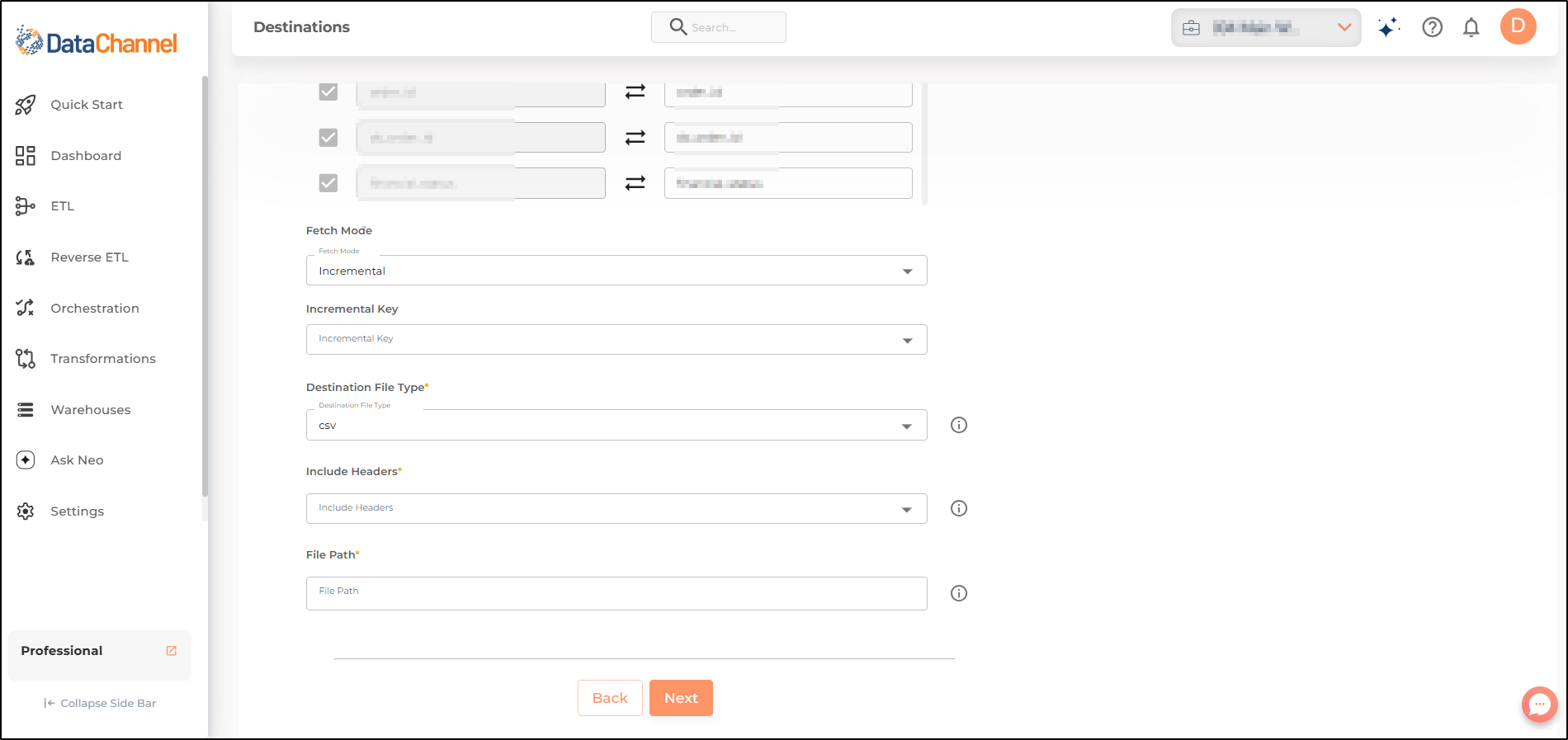
Fetch Mode |
Required This refers to the manner in which data will get updated : FULL will update the entire column(s) from the selected data, INCREMENTAL will update the fresh record(S) added since last fetch |
Default Value: FULL |
Incremental Key Dependant |
Required (If Fetch Mode = Incremental) Choose the field which will serve as Incremental key. |
Select Incremental Key |
Destination File Type |
Required Specify whether to export data in CSV or newline delimited JSON or Apache Parquet or Apache Avro. |
Default Value: csv |
Include Headers |
Required Specify whether to include headers in the exported file if "Destination File Type" is "csv". |
Default Value: Yes |
File Path |
Required Enter the absolute path where file needs to be uploaded. Supports datetime string formats. |
Enter the file path. |
Data Sync Scheduling
Set the schedule for the sync to run. Detailed explanation on scheduling of syncs can be found here
Dataset & Name
Give your sync a name and some description (optional) and click on Finish to save it. Read more about naming and saving your syncs including the option to save them as templates here
Still have Questions?
We’ll be happy to help you with any questions you might have! Send us an email at info@datachannel.co.
Subscribe to our Newsletter for latest updates at DataChannel.